
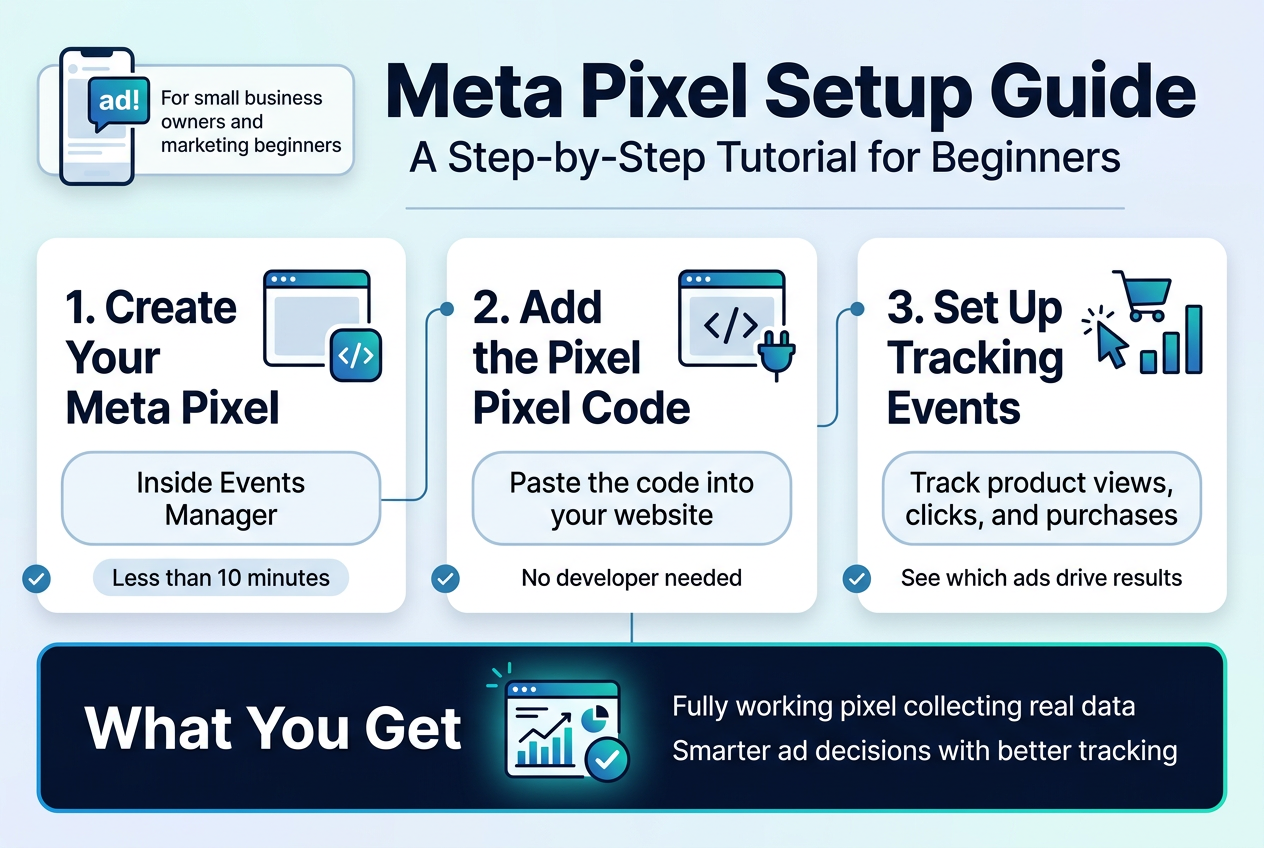
Meta Pixel Setup Guide: A Step-by-Step Tutorial for Beginners
If you’re running Facebook or Instagram ads and not tracking what people do after they click, you’re basically flying blind. The Meta Pixel fixes that — it’s a small piece of code that sits on your website and tells you exactly what your visitors are doing, from browsing a product page to completing a purchase.
This guide is for small business owners, marketing beginners, and anyone who wants to get more out of their ad spend without needing a developer on speed dial.
Here’s what we’ll walk through together:
- How to create your Meta Pixel inside Events Manager — it takes less than 10 minutes
- How to add the pixel code to your website, even if you’ve never touched code before
- How to set up tracking events so you can see which ads are actually driving results
By the end, you’ll have a fully working pixel collecting real data — and you’ll know how to use that data to make smarter ad decisions.
Let’s get into it.
Understanding Meta Pixel and Why It Matters for Your Business
What Meta Pixel Is and How It Works
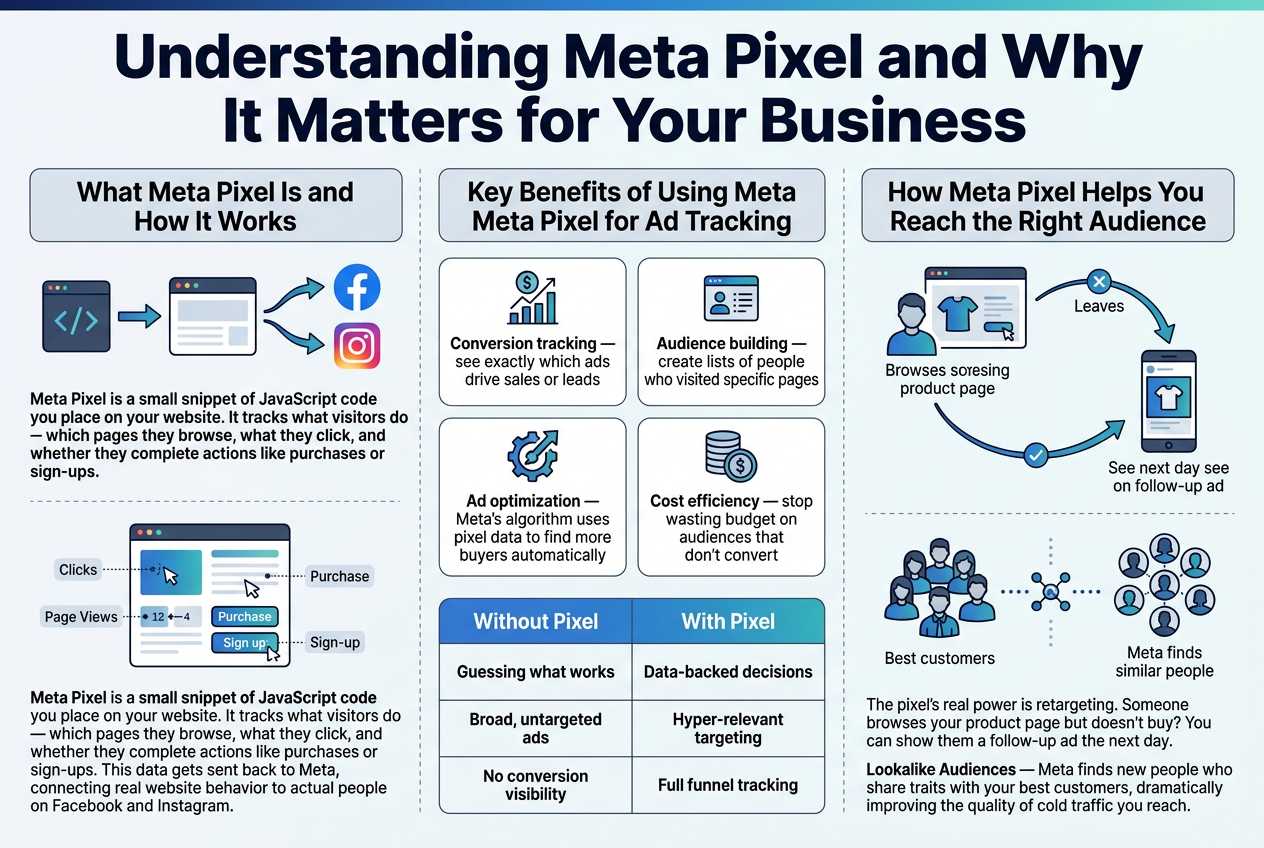
Meta Pixel is a small snippet of JavaScript code you place on your website. Once installed, it tracks what visitors do — which pages they browse, what they click, and whether they complete actions like purchases or sign-ups. This data gets sent back to Meta, connecting real website behavior to actual people on Facebook and Instagram.
Key Benefits of Using Meta Pixel for Ad Tracking
- Conversion tracking — see exactly which ads drive sales or leads
- Audience building — create lists of people who visited specific pages
- Ad optimization — Meta’s algorithm uses pixel data to find more buyers automatically
- Cost efficiency — stop wasting budget on audiences that don’t convert
| Without Pixel | With Pixel |
|---|---|
| Guessing what works | Data-backed decisions |
| Broad, untargeted ads | Hyper-relevant targeting |
| No conversion visibility | Full funnel tracking |
How Meta Pixel Helps You Reach the Right Audience
The pixel’s real power is retargeting. Someone browses your product page but doesn’t buy? You can show them a follow-up ad the next day. You can also build Lookalike Audiences — Meta finds new people who share traits with your best customers, dramatically improving the quality of cold traffic you reach.
What You Need Before Getting Started
Setting Up a Meta Business Account
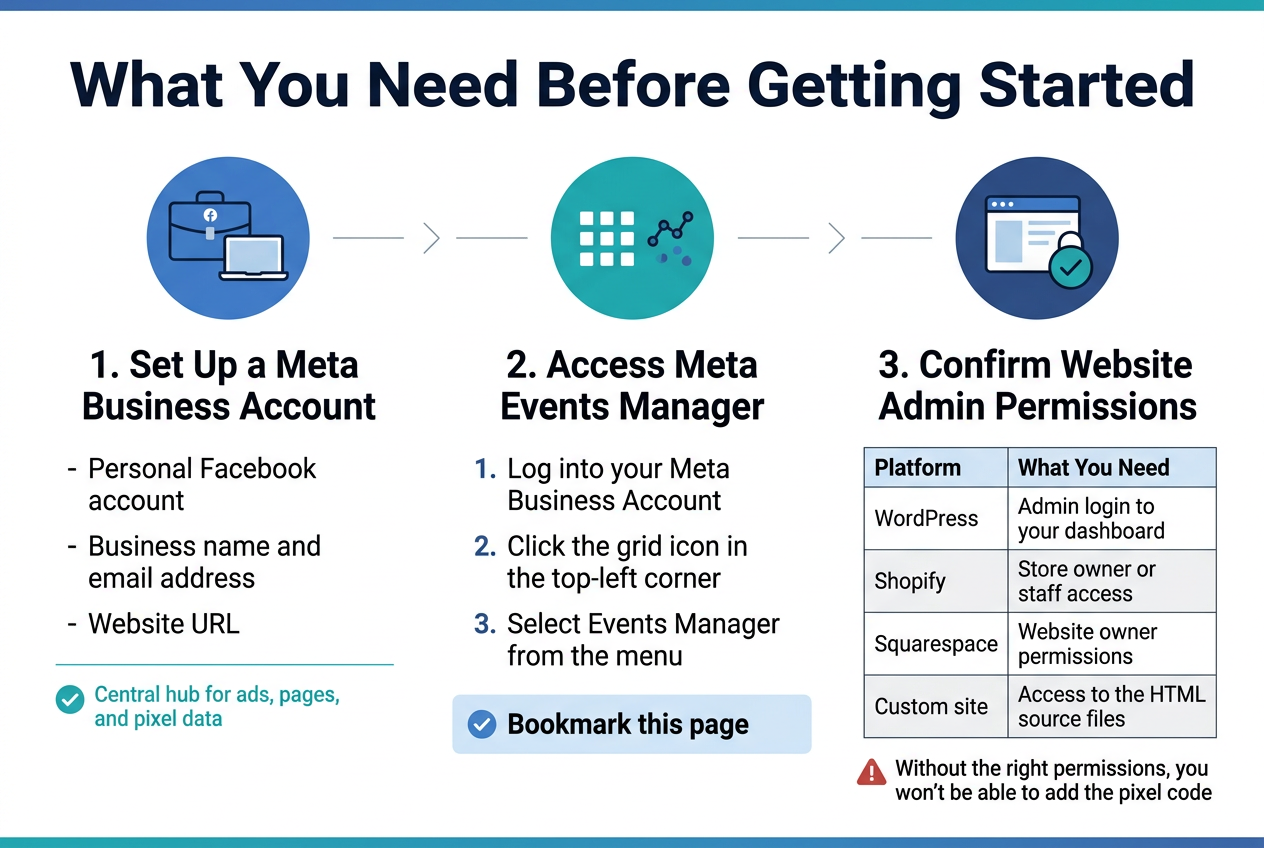
If you don’t already have one, head to business.facebook.com and create a Meta Business Account. You’ll need:
- A personal Facebook account to get started
- A business name and email address
- Your website URL
This account becomes the central hub for your ads, pages, and pixel data.
Accessing Meta Events Manager
Meta Events Manager is where you’ll create and manage your pixel. You can find it by:
- Logging into your Meta Business Account
- Clicking the grid icon in the top-left corner
- Selecting Events Manager from the menu
Bookmark this page — you’ll be visiting it often.
Confirming Website Admin Permissions
Before touching any pixel code, make sure you actually have backend access to your website. Here’s what you need depending on your platform:
| Platform | What You Need |
|---|---|
| WordPress | Admin login to your dashboard |
| Shopify | Store owner or staff access |
| Squarespace | Website owner permissions |
| Custom site | Access to the HTML source files |
Without the right permissions, you won’t be able to add the pixel code — and no code means no data.
Creating Your Meta Pixel in Events Manager
Locating the Pixel Creation Option in Events Manager
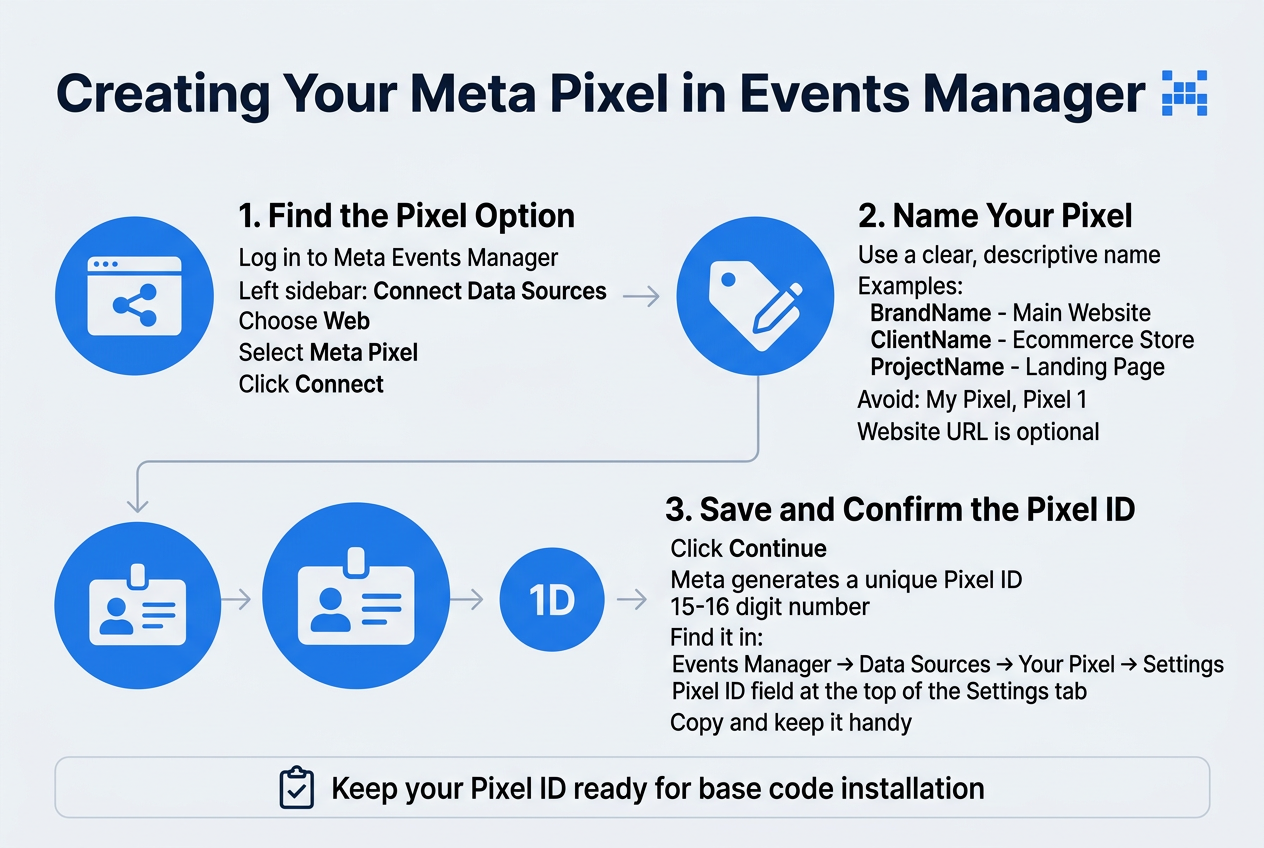
Head to Meta Events Manager and log in with your Business account. On the left sidebar, click Connect Data Sources, then select Web. You’ll be prompted to choose a connection method — pick Meta Pixel and hit Connect.
Naming Your Pixel for Easy Identification
Give your pixel a clear, descriptive name — especially if you manage multiple businesses or ad accounts. Good naming examples:
BrandName - Main WebsiteClientName - Ecommerce StoreProjectName - Landing Page
Avoid generic names like “My Pixel” or “Pixel 1.” You’ll thank yourself later when you’re juggling several pixels across different clients or campaigns.
You can also enter your website URL here. Meta uses this to suggest relevant setup options, but it’s optional.
Saving and Confirming Your New Pixel ID
Click Continue to generate your pixel. Meta assigns a unique Pixel ID — a 15-16 digit number you’ll use throughout the setup process.
| Where to Find It | Path |
|---|---|
| Events Manager | Data Sources → Your Pixel → Settings |
| Pixel ID field | Displayed at the top of the Settings tab |
Copy this ID and keep it handy — you’ll need it when installing the base code on your site.
Adding the Meta Pixel Code to Your Website
Manually Installing the Pixel Code in Your Website Header
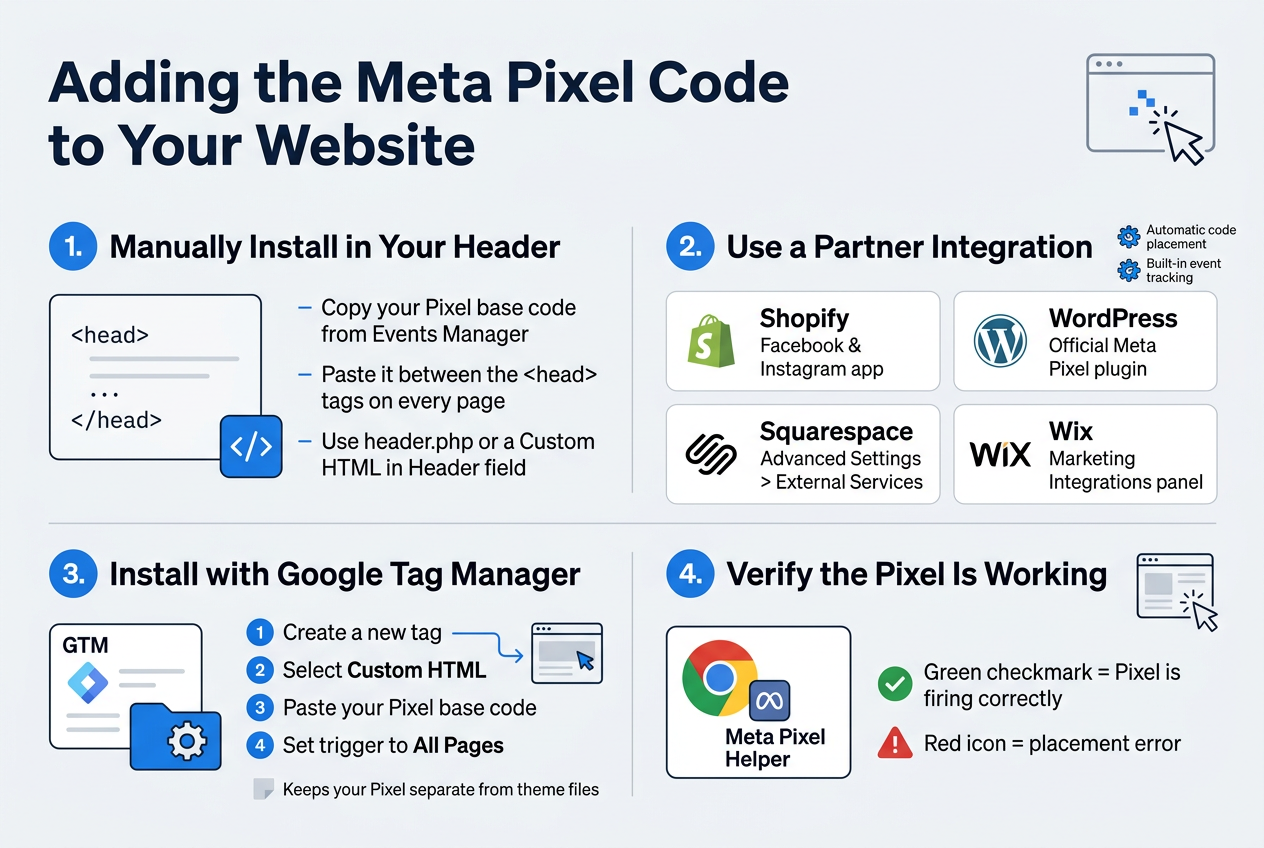
Copy your Pixel base code from Events Manager, then paste it between the <head> and </head> tags of every page on your site. Most themes have a header.php file or a “Custom HTML in Header” field where you can drop it in once and it applies everywhere.
Using a Partner Integration for Faster Setup
If you’re on a popular platform, skip manual code entirely:
- Shopify – Connect directly through the Facebook & Instagram app
- WordPress – Use the official Meta Pixel plugin
- Squarespace – Paste your Pixel ID under Advanced Settings > External Services
- Wix – Add it through the Marketing Integrations panel
These integrations handle the code placement automatically and often include built-in event tracking.
Installing via Google Tag Manager for More Control
In GTM, create a new tag, select Custom HTML, paste your Pixel base code, and set the trigger to All Pages. This keeps your Pixel separate from your theme files and makes future updates much cleaner.
Verifying the Pixel Code Is Placed Correctly
Install the Meta Pixel Helper Chrome extension. Visit your website and click the extension icon — a green checkmark means your Pixel is firing correctly. A red icon signals a placement error worth fixing immediately.
Setting Up Key Events to Track Visitor Actions
Understanding Standard Events vs Custom Events
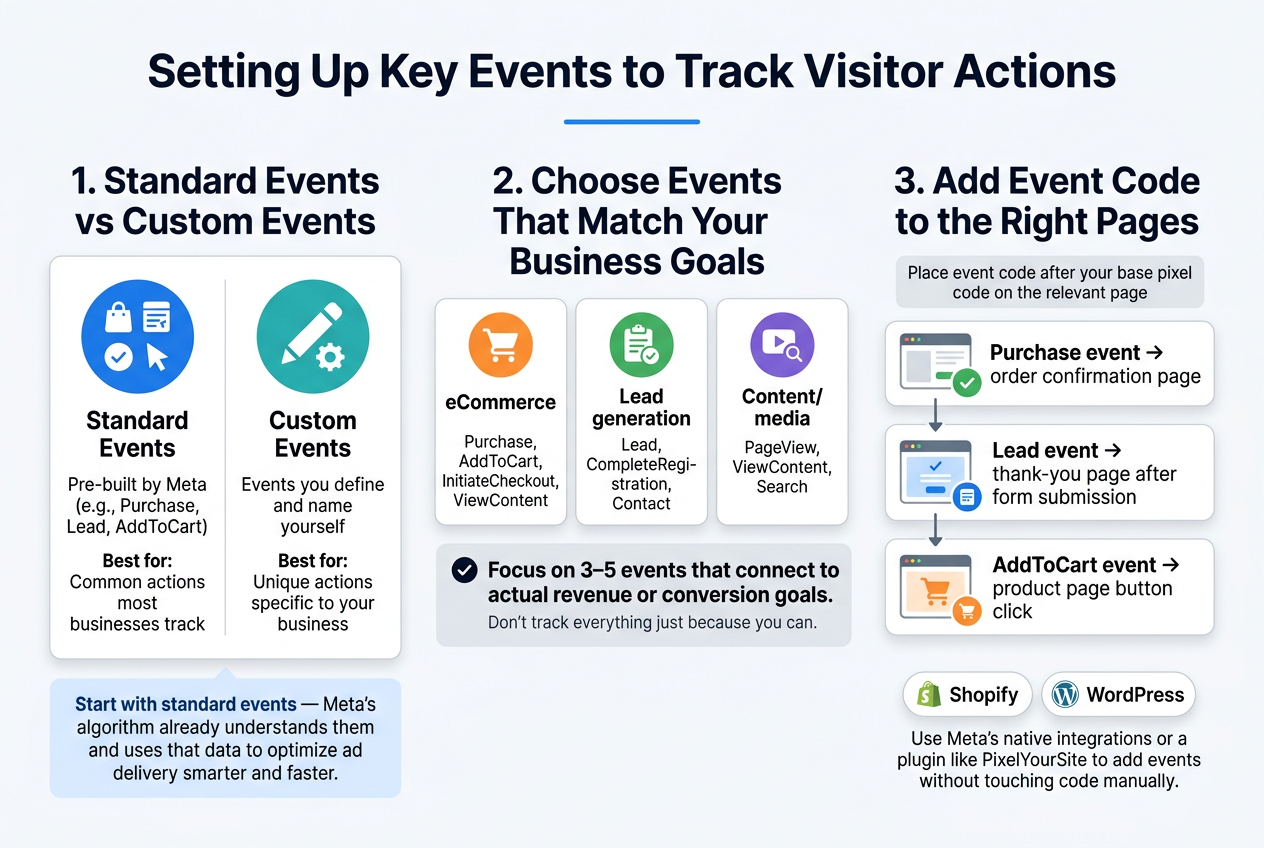
Meta gives you two types of events to work with:
| Event Type | What It Is | Best For |
|---|---|---|
| Standard Events | Pre-built by Meta (e.g., Purchase, Lead, AddToCart) | Common actions most businesses track |
| Custom Events | Events you define and name yourself | Unique actions specific to your business |
Start with standard events — Meta’s algorithm already understands them and uses that data to optimize ad delivery smarter and faster.
Choosing the Right Events for Your Business Goals
Pick events that align directly with what you want to achieve:
- eCommerce: Purchase, AddToCart, InitiateCheckout, ViewContent
- Lead generation: Lead, CompleteRegistration, Contact
- Content/media: PageView, ViewContent, Search
Don’t track everything just because you can. Focus on 3–5 events that connect to actual revenue or conversion goals.
Adding Event Code to Specific Pages on Your Site
Place event code after your base pixel code on the relevant page:
Purchaseevent → order confirmation pageLeadevent → thank-you page after form submissionAddToCartevent → product page button click
If you’re on Shopify or WordPress, use Meta’s native integrations or a plugin like PixelYourSite to add events without touching code manually.
Testing and Verifying Your Pixel Is Working
Using the Meta Pixel Helper Chrome Extension
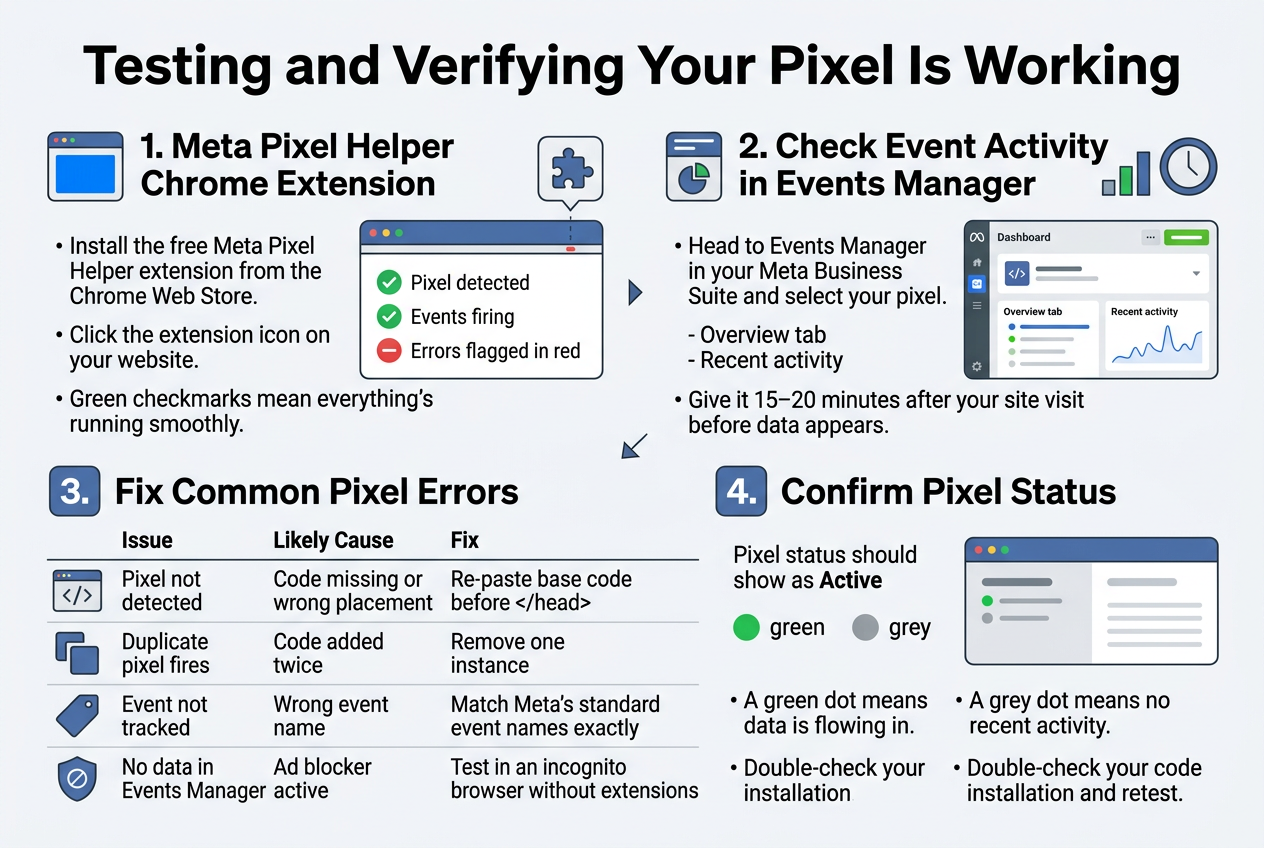
Install the free Meta Pixel Helper extension from the Chrome Web Store. Once added, visit your website and click the extension icon. It’ll show:
- Whether a pixel is detected
- Which events are firing
- Any errors flagged in red
Green checkmarks mean everything’s running smoothly.
Checking Event Activity Inside Events Manager
Head to Events Manager in your Meta Business Suite and select your pixel. The Overview tab shows recent activity, including which events are being received and how often. Give it 15–20 minutes after your site visit before data appears.
Fixing Common Pixel Errors and Mismatches
| Issue | Likely Cause | Fix |
|---|---|---|
| Pixel not detected | Code missing or wrong placement | Re-paste base code before </head> |
| Duplicate pixel fires | Code added twice | Remove one instance |
| Event not tracked | Wrong event name | Match Meta’s standard event names exactly |
| No data in Events Manager | Ad blocker active | Test in an incognito browser without extensions |
Confirming Your Pixel Status Shows as Active
In Events Manager, your pixel’s status dot should turn green once data starts flowing in. A grey dot means no recent activity — double-check your code installation and retest.
Using Pixel Data to Improve Your Ad Campaigns
Building Custom Audiences from Pixel Data
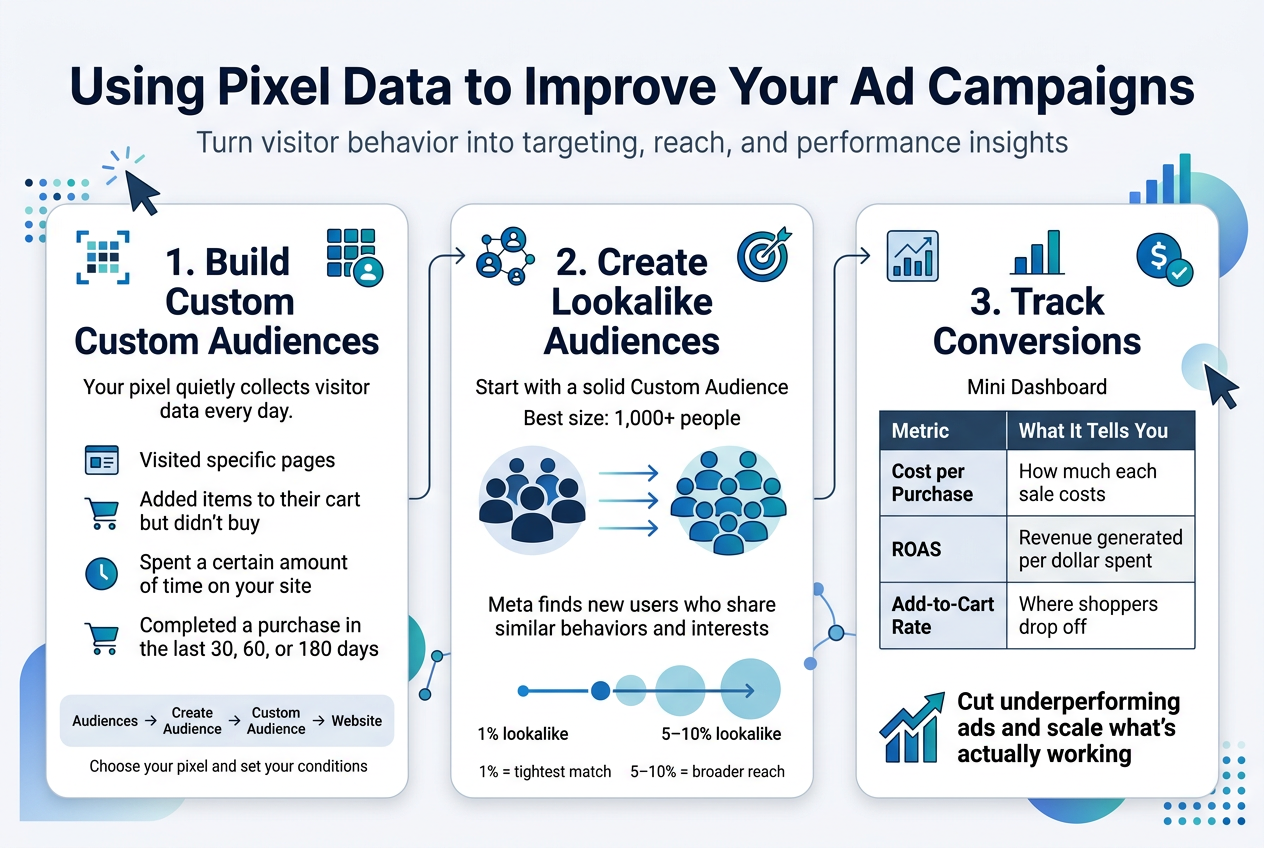
Your pixel quietly collects visitor data every day — and that data becomes gold when building Custom Audiences. You can target people who:
- Visited specific pages (like pricing or product pages)
- Added items to their cart but didn’t buy
- Spent a certain amount of time on your site
- Completed a purchase in the last 30, 60, or 180 days
Head to Audiences in Meta Ads Manager, select Create Audience → Custom Audience → Website, then choose your pixel and set your conditions.
Creating Lookalike Audiences to Expand Your Reach
Once you have a solid Custom Audience (ideally 1,000+ people), you can build a Lookalike Audience — Meta finds new users who share similar behaviors and interests to your best customers. A 1% lookalike is the tightest match; going up to 5–10% broadens your reach at the cost of similarity.
Tracking Conversions to Measure Ad Performance
Pixel data ties your ad spend directly to results. In Ads Manager, you’ll see:
| Metric | What It Tells You |
|---|---|
| Cost per Purchase | How much each sale costs |
| ROAS | Revenue generated per dollar spent |
| Add-to-Cart Rate | Where shoppers drop off |
Use this to cut underperforming ads and scale what’s actually working.
FAQ
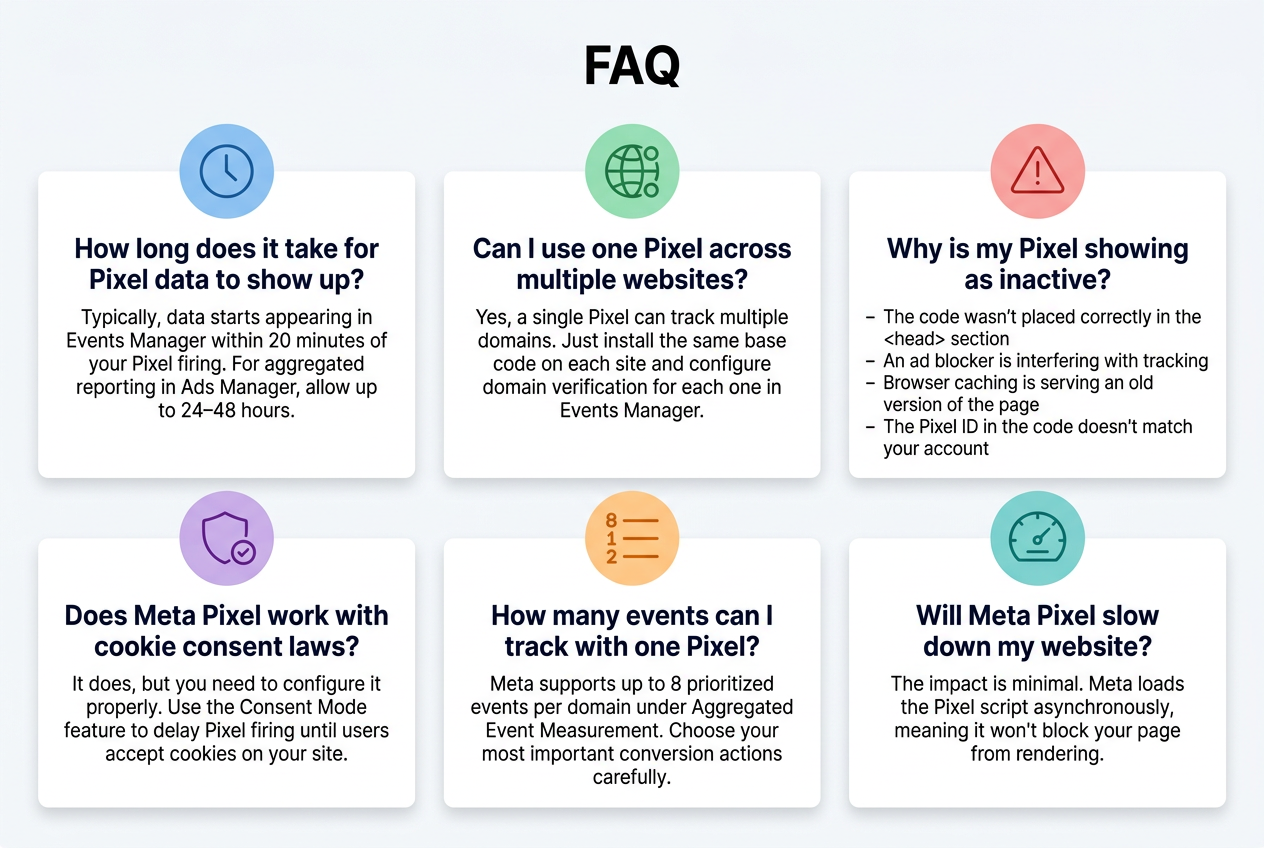
How long does it take for Pixel data to show up?
Typically, data starts appearing in Events Manager within 20 minutes of your Pixel firing. For aggregated reporting in Ads Manager, allow up to 24–48 hours.
Can I use one Pixel across multiple websites?
Yes, a single Pixel can track multiple domains. Just install the same base code on each site and configure domain verification for each one in Events Manager.
Why is my Pixel showing as inactive?
A few common culprits:
- The code wasn’t placed correctly in the
<head>section - An ad blocker is interfering with tracking
- Browser caching is serving an old version of the page
- The Pixel ID in the code doesn’t match your account
Does Meta Pixel work with cookie consent laws?
It does, but you need to configure it properly. Use the Consent Mode feature to delay Pixel firing until users accept cookies on your site.
How many events can I track with one Pixel?
Meta supports up to 8 prioritized events per domain under Aggregated Event Measurement. Choose your most important conversion actions carefully.
Will Meta Pixel slow down my website?
The impact is minimal. Meta loads the Pixel script asynchronously, meaning it won’t block your page from rendering.
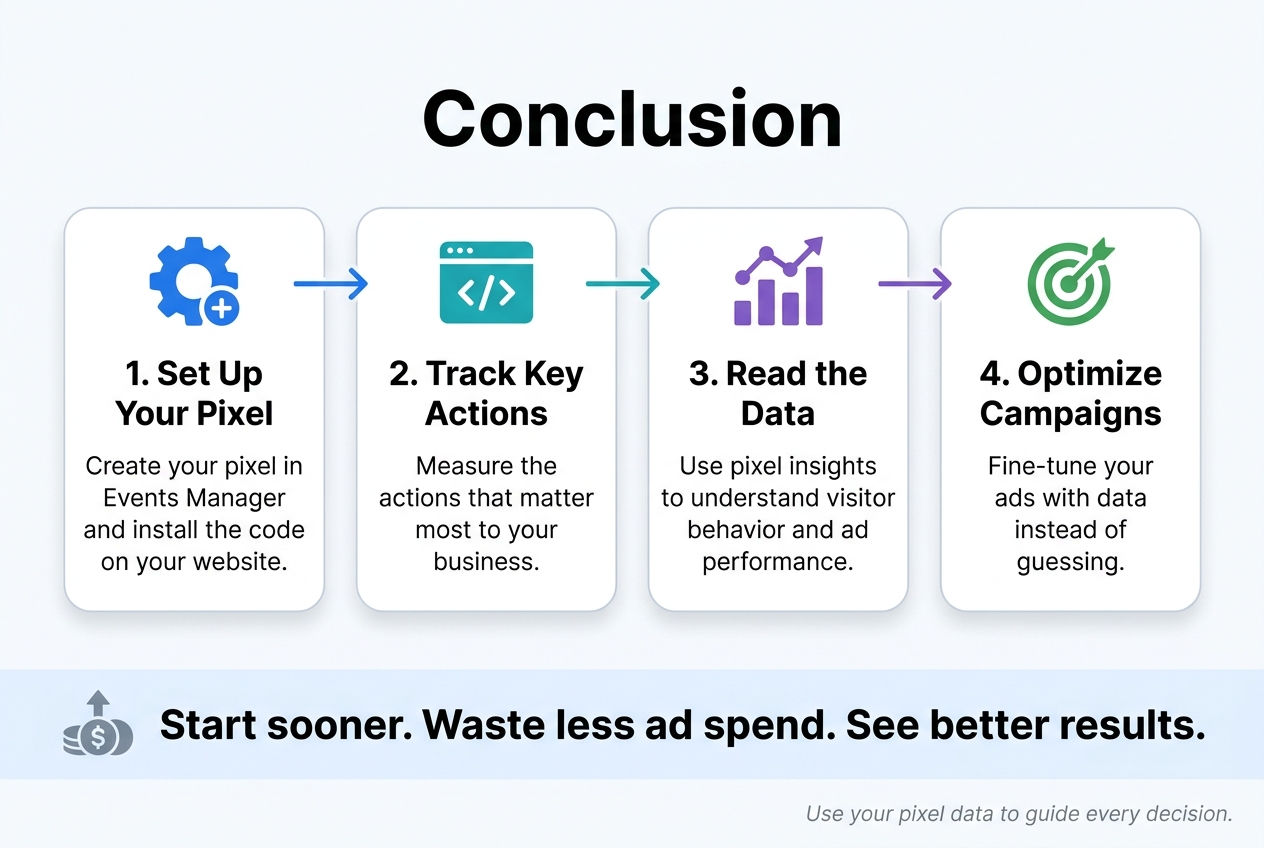
Getting the Meta Pixel up and running might seem a little overwhelming at first, but once you break it down step by step, it’s really not that complicated. From creating your pixel in Events Manager to adding the code to your website and tracking the actions that matter most, each piece plays a role in helping you understand what your visitors are doing and how your ads are actually performing.
Now that you have the foundation in place, the real fun begins. Start paying attention to the data your pixel collects, use it to fine-tune your campaigns, and let it guide your decisions instead of guessing. The sooner you get your pixel working correctly, the sooner you’ll stop wasting ad spend and start seeing results that actually move the needle for your business.